




Relive the ride. Explore the forces. Add them to your videos.
Find the strongest airtime moment, inspect a launch or bring your ride data into
an Onride video. Ride Forces Analyzer turns .forces and compressed .zforces recordings from the
Ride Forces app on iPhone or Apple Watch into
interactive charts and video overlays on Windows, Linux and macOS.
Download · Watch the Manta demo · User guides
Free and open source · Offline processing · English, German and French · Light and dark themes
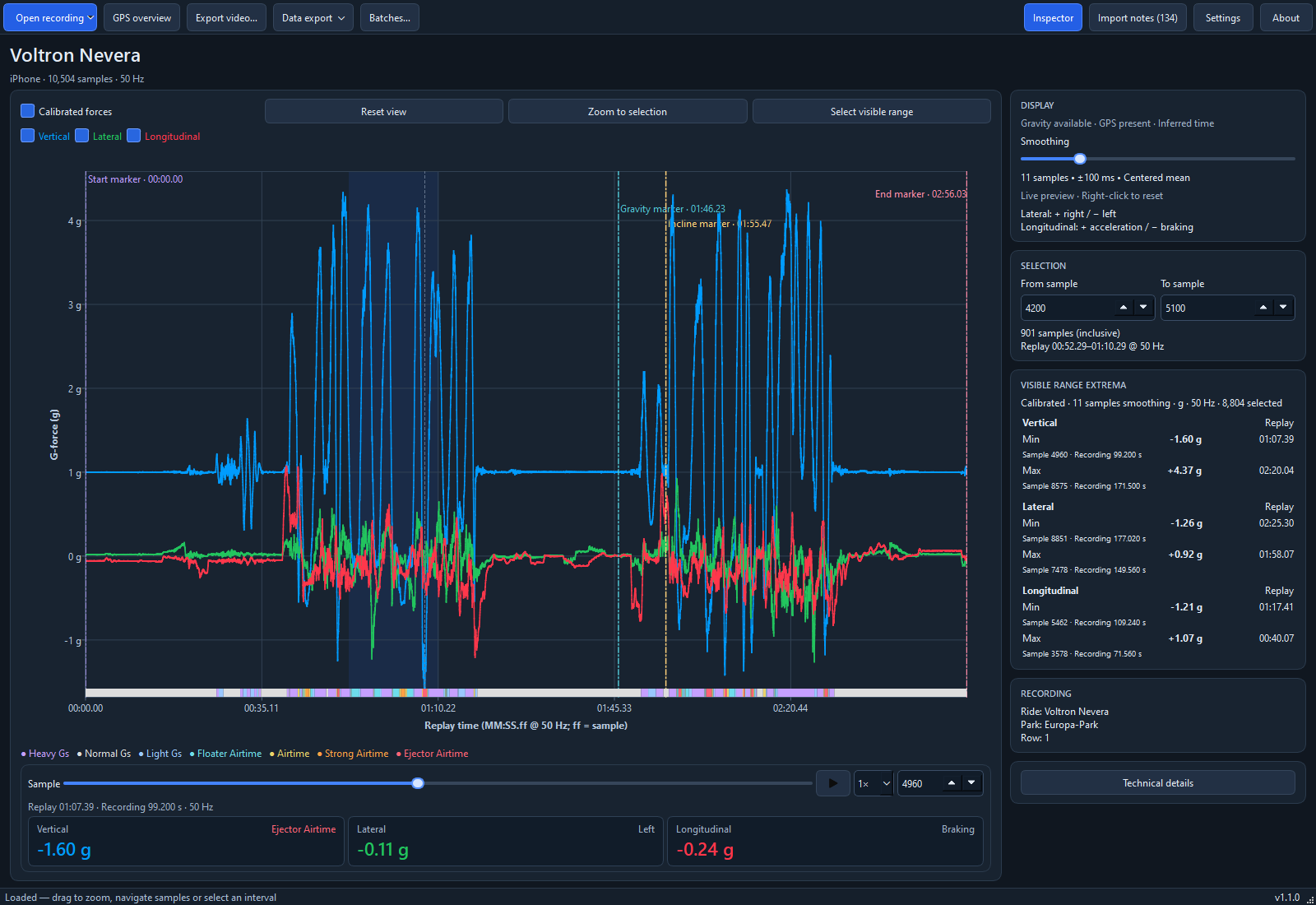
Follow the curves, zoom into a favorite element and inspect the forces at that moment.
Get started
You need Windows 10/11 x64, Ubuntu 24.04 x64 or macOS 15+ and a recording
exported as a .forces or .zforces file from the Ride Forces app. macOS downloads are available
separately for Apple Silicon and Intel.
1. Download and launch
Open GitHub Releases and choose the download for your system:
| Download | How to start |
|---|---|
| Windows Complete ZIP | Recommended for Windows: extract and launch the EXE. |
| Linux x64 tar.gz | Follow the Linux setup steps, then extract and launch. |
| macOS Apple Silicon ZIP | Extract and move the app to Applications. |
| macOS Intel ZIP | Extract and move the app to Applications. |
No Python installation is needed. The Windows Complete ZIP includes FFmpeg for video export; Linux and macOS need it installed separately. Windows EXE and Standard ZIP downloads are also available if you prefer to use your own FFmpeg.
Version 1.1.0 is a stable release. Windows and macOS may display a security warning when you first open the app. Follow the installation guide for download verification, Linux prerequisites and first-launch instructions.
2. Open your ride
Click Open recording or press Ctrl+O (⌘O on macOS) and choose your .forces or .zforces file.
Click a point in the chart to inspect that sample, move through the ride with the
slider, or zoom into a section with the mouse wheel or by dragging across the plot.
Use Play / Pause beside the sample slider to follow the ride at 0.5×, 1× or 2× speed (default 1×).
See Explore a recording for navigation and selection.
3. Create an overlay
Click Export video…, choose a layout and check the preview. Export a transparent MOV for your video editor or an MP4 with a solid background. Align the overlay with your footage in the editor. The video export guide takes you through each step.
Your recordings stay on your computer. Opening, analyzing and exporting work offline after setup and leave the original files unchanged.
Explore what happened on the ride
- Explore three force channels together. Follow vertical loads, right/left forces, acceleration and braking on a shared time axis. Show or hide individual curves and inspect the values at any sample.
- Focus on the interesting part. Zoom with the mouse wheel or drag across the chart. Start/end markers define the initial view; reset returns to it. The inspector shows minimum and maximum values for the visible section of every channel.
- Smooth the display interactively. Adjust the slider while watching the curves update. Right-click to restore the default. Smoothing changes the displayed curves, while your original measurements remain intact.
- Follow the airtime context. A colored strip below the curves distinguishes normal loads, Floater, Airtime, Strong Airtime and Ejector. The vertical value card shows the current context, with stable labels that avoid rapid flicker. These are provisional interpretations of the recording, not measured sensations.
- Keep the ride context nearby. View available ride, park, train, row and seat information. Open an approximate GPS route overview when positions are present in the recording. Optionally load an OpenStreetMap background for the visible area; this explicit action requires internet access.
- Prepare several exports at once. Save your preferred settings, reuse them for another ride, and queue multiple recordings and layouts for one batch run.
- Export sample data as CSV or JSON. Save a selected interval with original values, prepared forces and airtime context for your own analysis. See the CSV guide or JSON guide.
Directional forces are shown when the recording contains usable calibration directions. Otherwise, you can still inspect the raw x/y/z channels, with an explanation of what is unavailable.
Airtime up close · Voltron Nevera
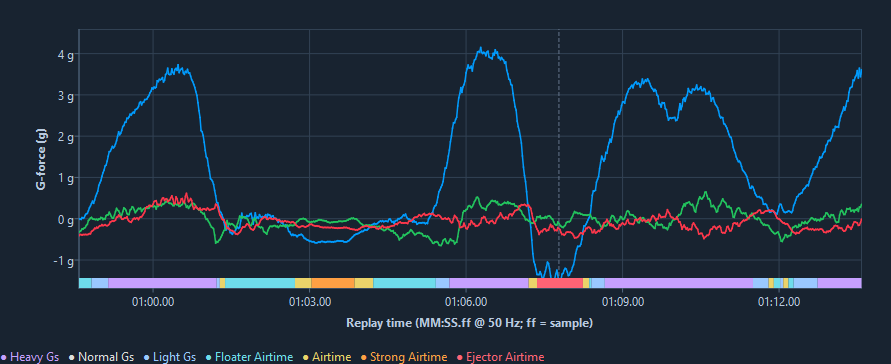
Follow the colored strip through the airtime moments. The cursor marks Voltron’s −1.60 g sample at replay 01:07.39, with 11-sample smoothing. Labels are provisional interpretations of the recording.
Forces at a glance · Taron

One moment, three force channels: Taron at replay 00:22.15. Read each value alongside its direction or current vertical context.
Find your smoothing level · Manta
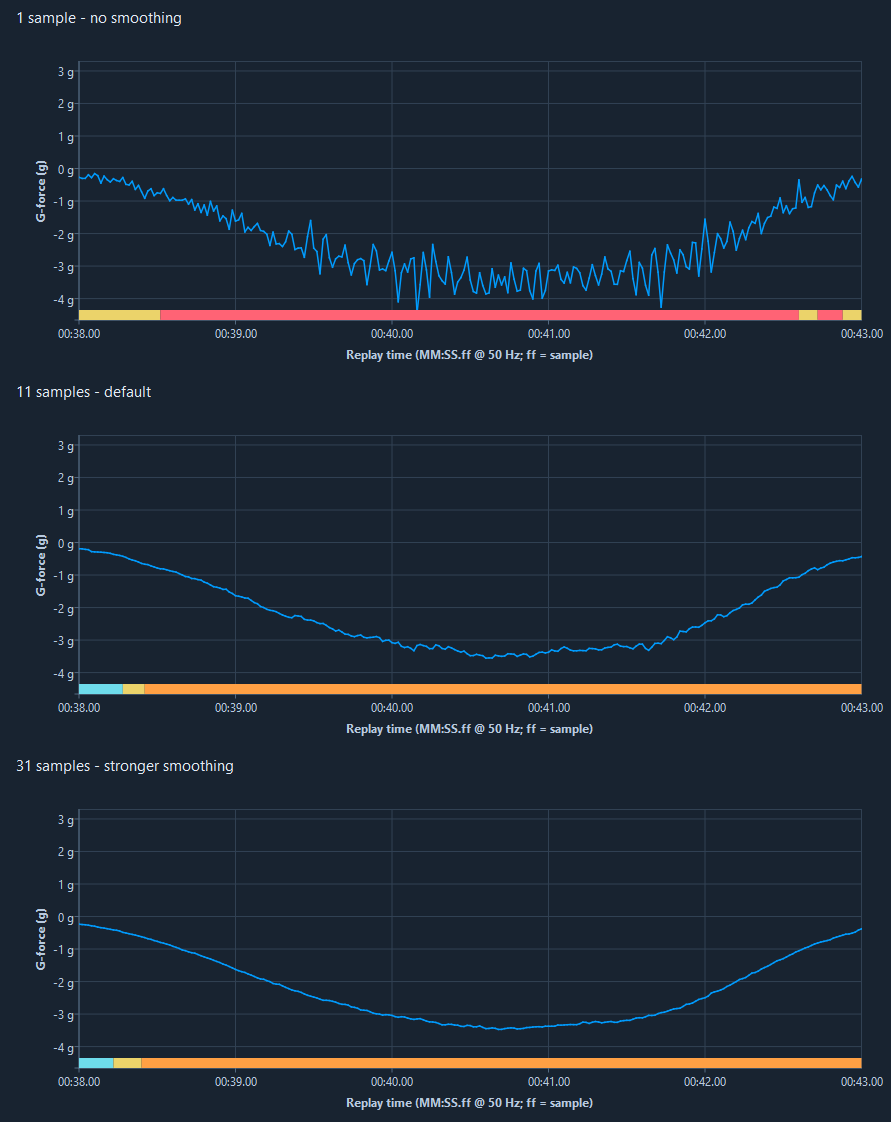
The same Manta interval with 1 sample (off), 11 samples (default) and 31 samples (stronger). Time and force scales are fixed for this comparison. Stronger smoothing reduces short peaks and can change the airtime context; the original samples remain unchanged.
Bring the ride into your videos
Watch the Manta overlay demo to see all five layouts in turn over Onride footage: Four-panel column, Flow Ribbon, G-Orbit, HUD and Corner Instruments.
Watch the Manta HUD demo to see the HUD overlay over Onride footage, recorded in row 3, seat 3. It uses the supplied Manta reference recording.
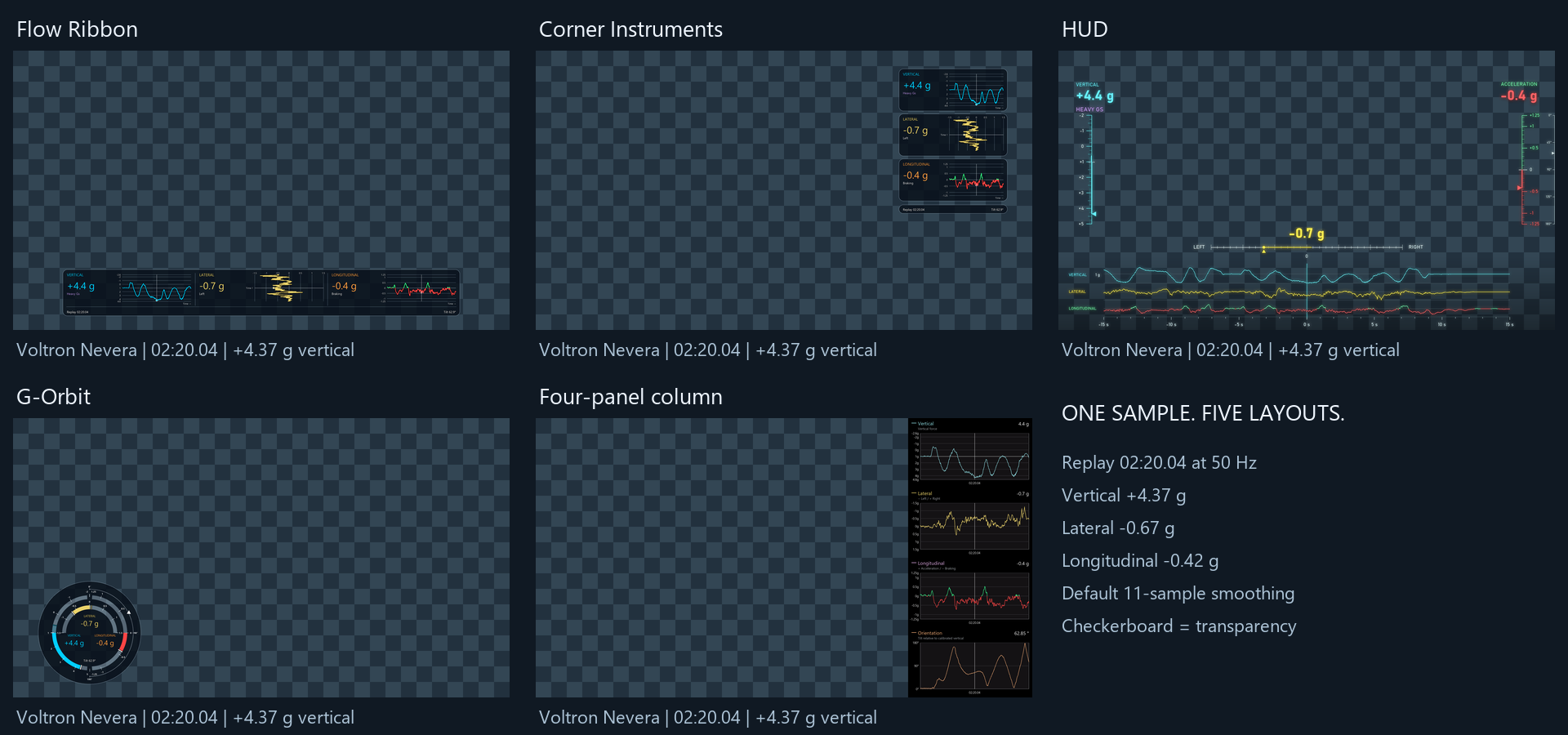
| Layout | Look and placement |
|---|---|
| Flow Ribbon | A strip along the bottom with force histories. |
| Corner Instruments | Compact instruments in the upper right. |
| HUD | Frameless gauges and wide force histories. |
| G-Orbit | Circular gauges with signed forces and peak indicators. |
| Four-panel column | Stacked force and orientation plots. |
Choose a layout or compare larger previews.
Export themes use yellow for lateral data, green for acceleration and red for braking. Flow Ribbon, Corner Instruments and HUD also show the current vertical context with the same colors and labels as the workspace.
Every layout supports landscape for classic YouTube videos and portrait for Shorts or TikTok. HUD exports at its native 1920×1080 or 1080×1920; scale it to your timeline in your video editor. The other layouts export in 4K. Choose Position beside the layout to keep the action clear. Export the whole recording, its marker interval or your selected section. Choose the overlay language independently of the application.
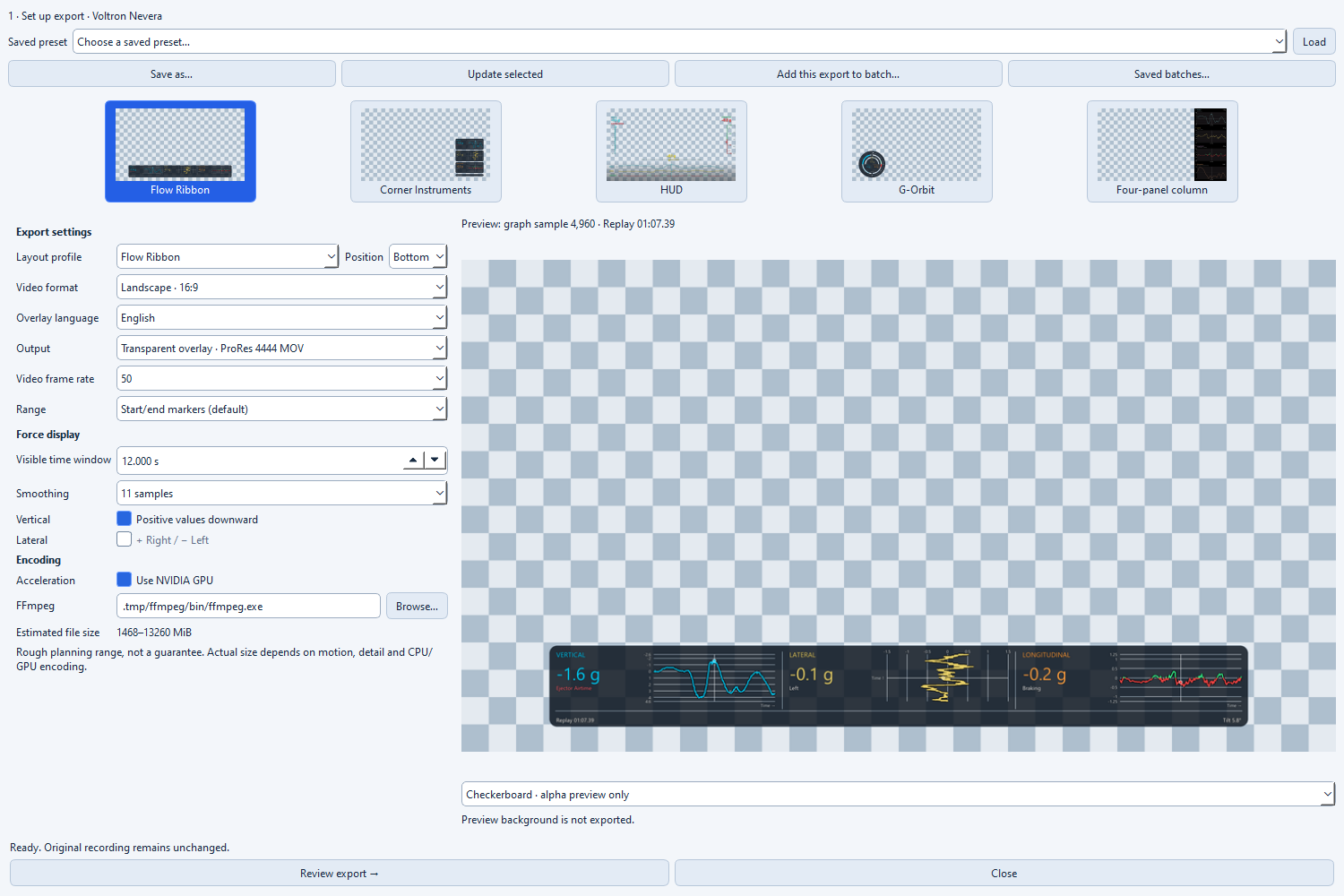
Preview the selected chart moment before rendering. The checkerboard indicates transparency and is not part of the video.
- Transparent MOV (ProRes 4444): place it above your footage in a video editor such as DaVinci Resolve. These editing files can be large.
- Opaque MP4 (H.264): export a video with a solid background.
- Optional NVIDIA acceleration: supported hardware speeds up encoding; CPU export remains available.
- Saved presets and batches: reuse settings or run several ride/preset combinations sequentially. Completed videos survive cancellation of the queue.
Match the export frame rate to your footage and editing timeline, including 59.94 fps when that is how your footage was recorded. Use Settings → Export to save your preferred frame rate for new exports. Saved presets and batches keep their own settings.
Video export needs FFmpeg. The Windows Complete ZIP includes it; other downloads let you select an installed FFmpeg in the export assistant. Follow the step-by-step export guide to create an overlay and place it above your footage.
Make the workspace yours
Choose English, German or French and a light, dark or ride-inspired theme in Settings → Application. Compare the themes. Your saved choices are remembered. The chart adapts to the available window space; smaller windows let you switch between the chart and inspector.
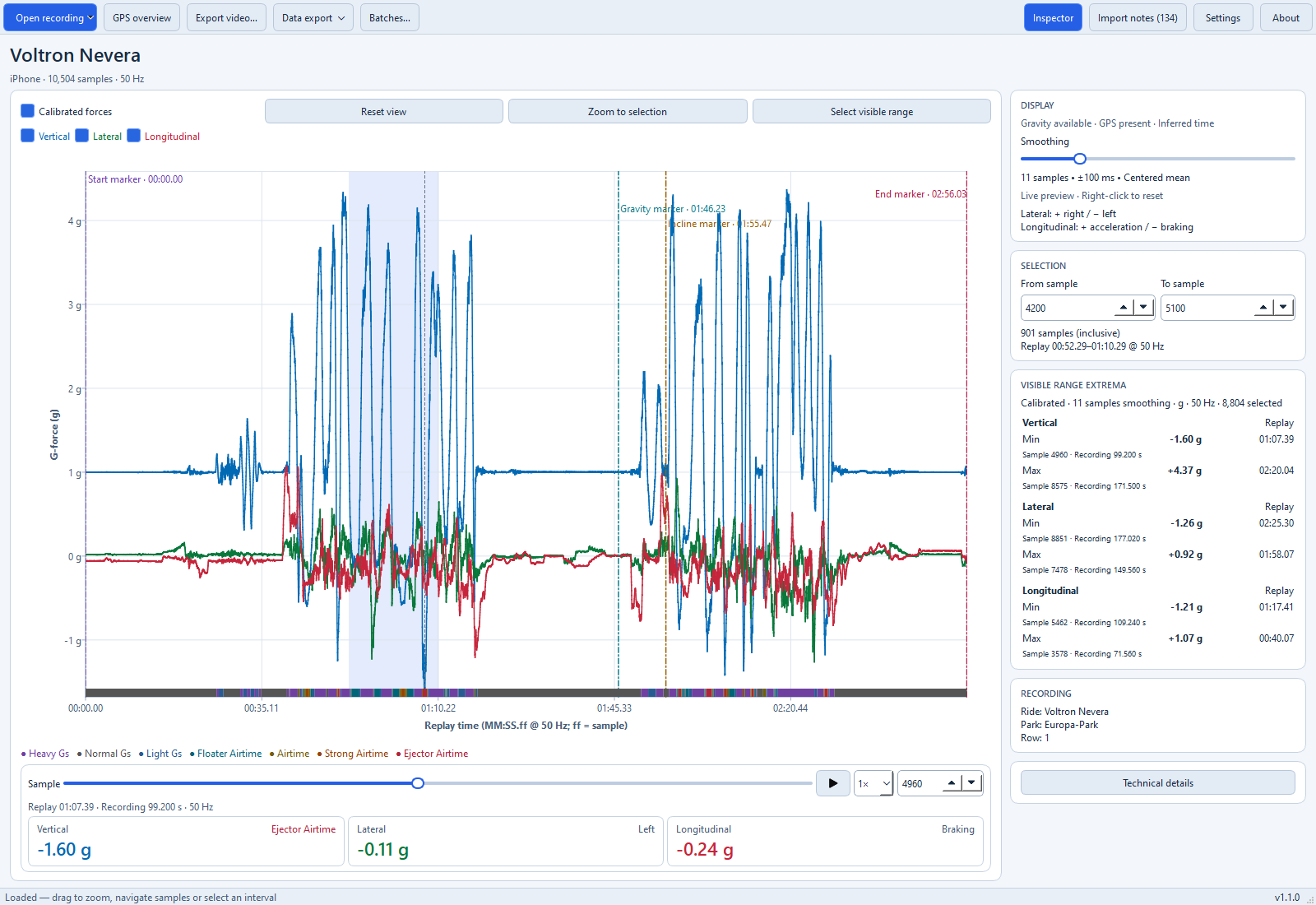
The same ride and selected moment, in the light theme.
Settings → Application offers Check for updates… and the optional daily startup check. Automatic checks are off by default. Checks contact GitHub without sending recordings, GPS data or file paths; downloads and installation remain manual. Offline processing does not require update checks.
Understanding the display
Replay time uses MM:SS.ff, where ff counts samples within a second rather
than hundredths. At 50 Hz, 01:31.47 means 91.94 seconds.
Positive lateral values mean right; positive longitudinal values mean acceleration.
Negative values mean left and braking respectively.
The airtime strip follows your chart zoom. Floater and Ejector labels are provisional: calibration and smoothing affect their interpretation. They do not measure a rider’s sensations. Results may differ from the original app. GPS provides an approximate route, not force or speed measurements. Missing sensor data is never invented. See the forces and airtime guide for details.
Help and contribute
Start with the installation guide, video export guide or layout guide. Have a problem or an idea? Open an issue. Report security vulnerabilities privately using SECURITY.md.
For planned features and known limits, see the roadmap. To contribute or run from source, see CONTRIBUTING.md and the Windows developer setup. Technical references are listed in the documentation index.
Independent project: Ride Forces Analyzer is not affiliated with, endorsed by or sponsored by the Ride Forces app or its developer.
License
Copyright © 2026 Björn Rudner.
The application is free and open source under GPL-3.0-or-later, including commercial use under its terms, without warranty. See LICENSE.
Reuse terms for supplied recordings are in the recording notice; image licensing and attribution are in the central image guide. These grants do not automatically apply to your own recordings or exports. Dependencies retain their own licenses; see third-party notices for their terms and documented distribution limits.